
 Contact Us
TaxConnections Tutorials
We have provided easy to follow tutorials that will help you promote your tax professional profile to the largest possible number of people searching for your tax expertise. Please take the time to learn these tutorials with these instructions. If you have any questions please call the office at 858.999.0053 and we will be happy to help you.
- 1. What Is A Tax Professional Membership?
-
Tax Professional Membership provides a competitive advantage with visibility to key decision-makers in small, medium sized and large multinational companies. We promote you and your tax expertise to open doors to new opportunities. Key decision-makers pay more attention to you on TaxConnections as proven by Amazon Alexa Site Metrics.
- 2. What Is A Taxpayer Membership?
-
Taxpayer Memberships Enables You To:
1. Find A Tax Professional
2. Ask Tax Questions
3. Receive Tax Blogs
4. Verify CPA License
5. Verify Law License
- 3. What Tax Professionals Join TaxConnections?
-
1. Corporate Tax Professionals
2. Independent Tax Professionals
3. Public Accounting Tax Professionals
4. Tax Lawyers/Tax Counsels
5. Tax Advisors/Tax Consultants
- 4. What Are The Benefits Of TaxConnections Membership?
-
1. Raises authority for your tax expertise
2. Attracts more clients and tax jobs
3. Increase trust signals for client acquisition
4. Promote tax blogs to an interested audience
5. Gain prospective new clients on tax questions
6. Strong referral business from our members
7. Access valuable resources that save time
- 5. How Does A Tax Professional Sign Up?
-
1. Go to www.taxconnections.com and in the upper right hand corner of your screen click on:

- 6. What Does A Tax Professional Membership Cost?
-
TaxConnections Tax Professional Membership is $299.95 Annually.
- 7. How To Find A Tax Professional
-
1) Go to www.taxconnections.com and Login.
If this is your first visit to TaxConnections, you have two available options:
a) Sign Up as a Taxpayer
b) Sign Up as a Tax Professional Member
Across every page of the TaxConnections site is the Header Bar and it looks like this bar below...

2) Click on Find A Tax Professional and this will take you to the following page:

Type in what type of tax professional are you searching for
(i.e. by name, tax expertise, location, degree, certification, country, state, postal code, etc..)3) A screen will appear with one or many tax professionals based upon what you typed into the Find A Tax Professional open field.

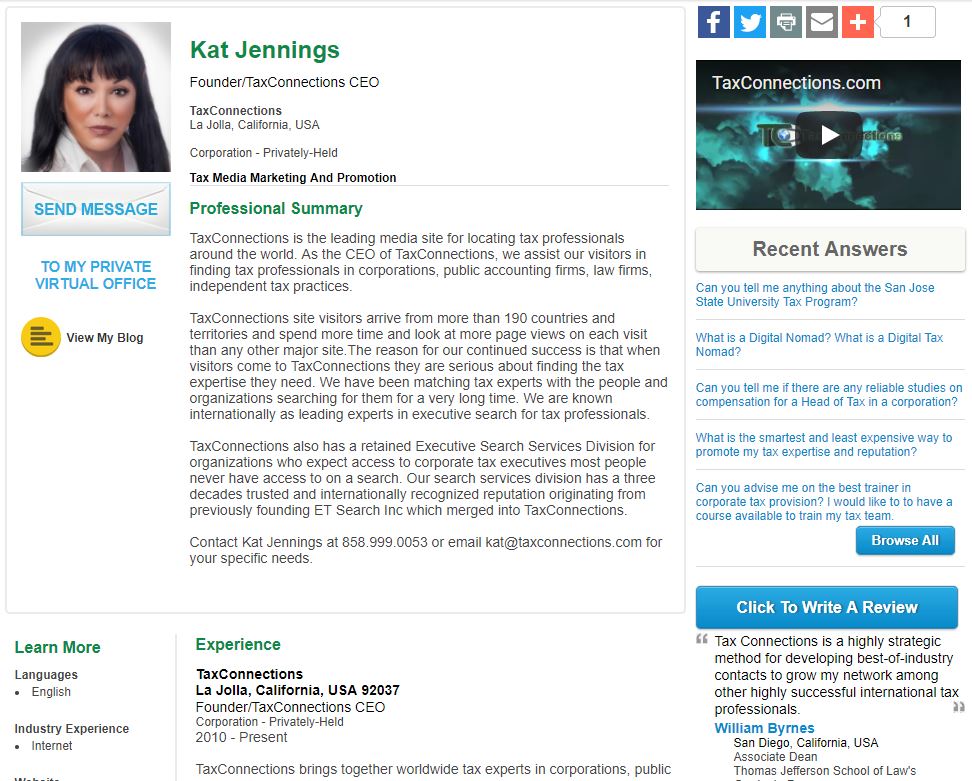
4) Now click on the tax professionals photo you are interested and this will take you to their full Professional Profile page. You can review their full profile and even Send A Message
5) TaxConnections never charges a fee to Send A Message to a tax professional nor do we charge our members a fee to accept your messages.
- 8. How To Send A Message To A Tax Professional
-
1) Go to www.taxconnections.com and Login.
If this is your first visit to TaxConnections, you have two available options:
a) Sign Up as a Taxpayer (Membership is FREE!)
b) Sign Up as a Tax Professional (Get Listed)
Across every page of the TaxConnections site is the Header Bar and it looks like this bar below...
2) Click on Find A Tax Professional and this will take you to the following page:
Type in what type of tax professional are you searching for
(i.e. by name, tax expertise, location, degree, certification, country, state, postal code, etc..)3) A screen will appear with one or many tax professionals based upon what you typed into the Find A Tax Professional open field.
4) Click on the photo of the tax professional you want and then their full page profile will appear. Just below their photo is a Send Message envelope.
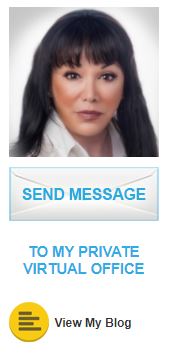
5) When you click on Send Message a Pop Up screen will appear asking you to introduce yourself to the person.
Our tax professional members will receive the message request from you. - 9. How To Ask Tax Questions
-
1) Go to www.taxconnections.com and Login.
If this is your first visit to TaxConnections, you have two available options:
a) Sign Up as a Taxpayer (Membership is FREE!)
b) Sign Up as a Tax Professional (Get Listed)
Across every page of the TaxConnections site is the Header Bar and it looks like this bar below...
2) Click on Ask Tax Questions and this will take you to the following page:
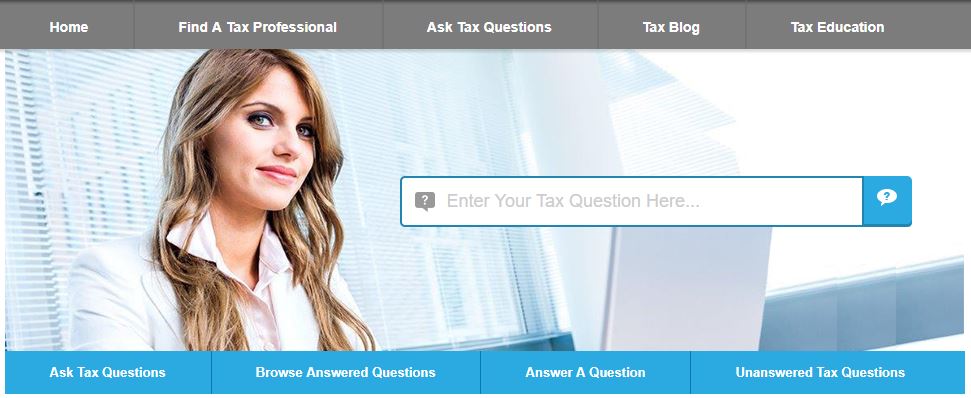
3) When you type any letter into the search bar Enter Your Tax Question Here you will be redirected to the Ask Tax Questions page you see below and here is what you need to do:
a) List country tax is located
b) Type your tax question into text box
c) Provide more details on income/location, etc
d) Tag your question with a topic
e) Write in tax topic ( i.e. individual, partnership, corporate tax, federal, state, local, property, sale and use)
f) As soon as you type in a topic a pop up will appear with some ideas for topics. If you do not see a tax tag topic
that relates to your question, simply click Add More+ to add a new tax that relates to your question.
g) Click on box that states “ I agree…” and then click blue button that states Submit Tax Question
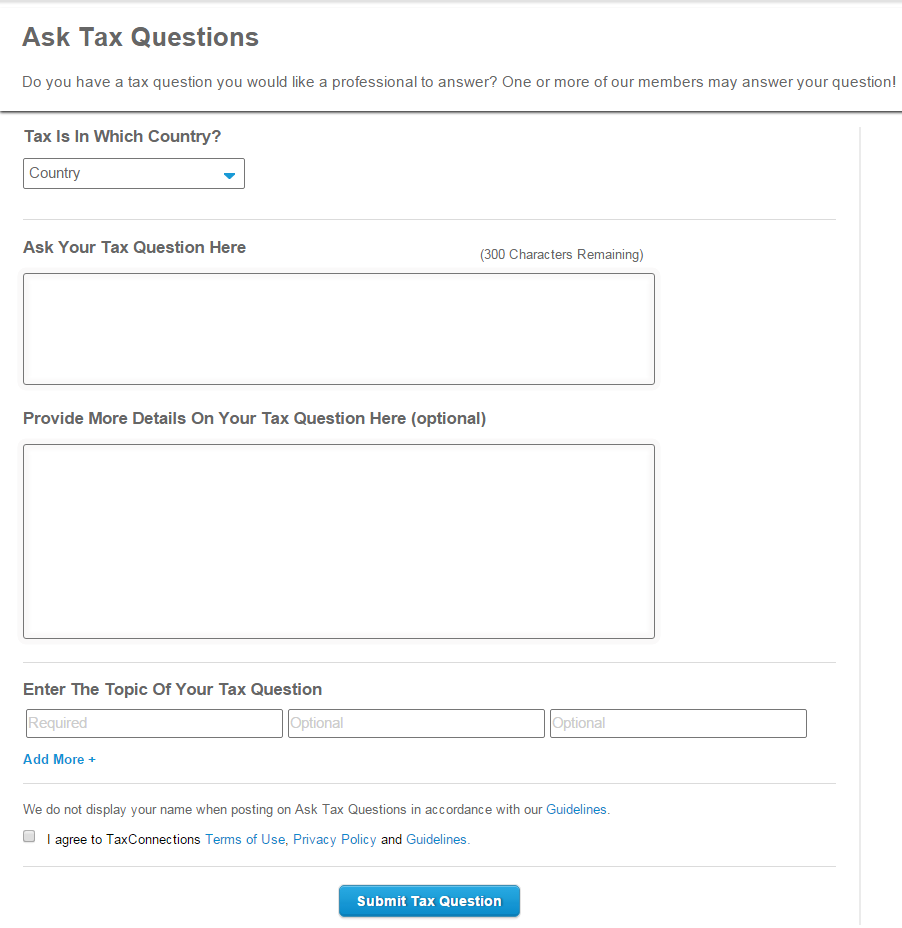
SPECIAL NOTE: Type any letter into the Enter The Topic Of Your Tax Question above and a list of topics from A-Z will appear to give you an idea of how to tag the topic. If we currently do not have a topic tag that fits your subject matter, click on Add More+.

Your Tax Question will appear on the Ask Tax Questions landing page. We never publish the name of the person who submitted the tax question. We know people prefer to remain anonymous when asking tax questions.
You will be notified via email when one of TaxConnections Members answers your tax questions. Our members receive extra promotion on TaxConnections for answering your questions.
- 10. Search Previously Asked Tax Questions-With Answers
-
1) Go to www.taxconnections.com and Login.
If this is your first visit to TaxConnections, you have two available options:
a) Sign Up as a Taxpayer (Membership is FREE!)
b) Sign Up as a Tax Professional (Get Listed)
Across every page of the TaxConnections site is the Header Bar and it looks like this bar below...
2) Click on Ask Tax Questions and this will take you to the following page:
3) Click on All Questions and then click on Answered Questions.
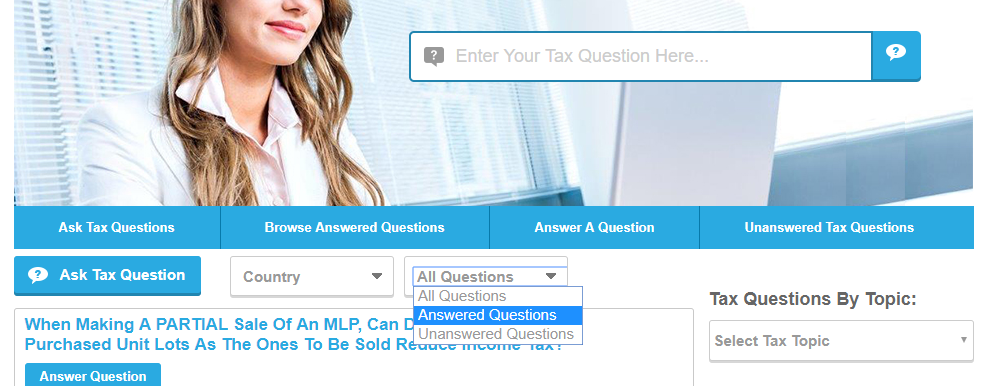
4) Make certain you also Select Country to refine the location.
5) You also have the ability to refine by topic with Tax Questions By Topic.
- 11. Write A Review On A Tax Professional
-
1) Go to www.taxconnections.com and Login.
If this is your first visit to TaxConnections, you have two available options:
a) Sign Up as a Taxpayer (Membership is FREE!)
b) Sign Up as a Tax Professional (Get Listed)
Across every page of the TaxConnections site is the Header Bar and it looks like this bar below...
2) Click on Find A Tax Professional and this will take you to the following page:
Type in what type of tax professional are you searching for
(i.e. by name, tax expertise, location, degree, certification, country, state, postal code, etc..)3) A screen will appear with one or many tax professionals based upon what you typed into the Find A Tax Professional open field.
4) Click on the small snapshot overview of the tax professional and their full professional page will appear with a button
Click To Write A Review. You will click on this button to write the review which they must approve for publication.
- 1. Upgrade From Taxpayer To Tax Professional Member
-
Upgrade Free Tax Professional Membership To Premium Membership
1) Go to www.taxconnections.com and Login.
2) Click “Welcome Your Name” in the top right corner.
3) Scroll down and click Account Settings.
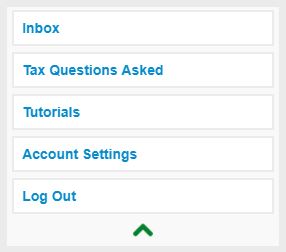
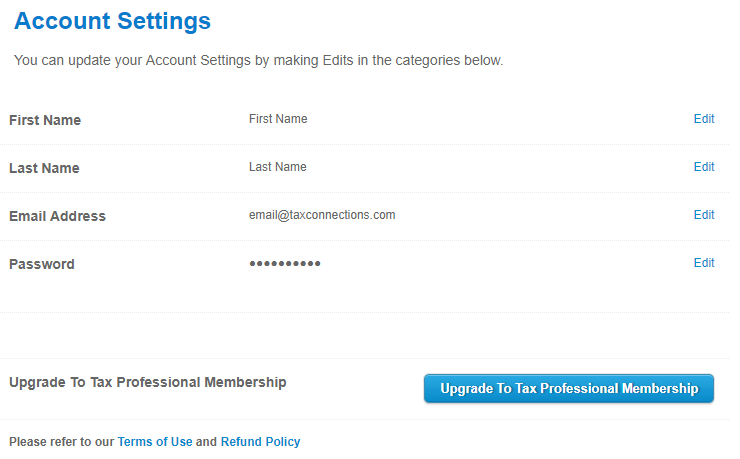
Once in Account Settings, click on Upgrade To Tax Professional Membership.
- 2. Update Your Email Address For Your Account
-
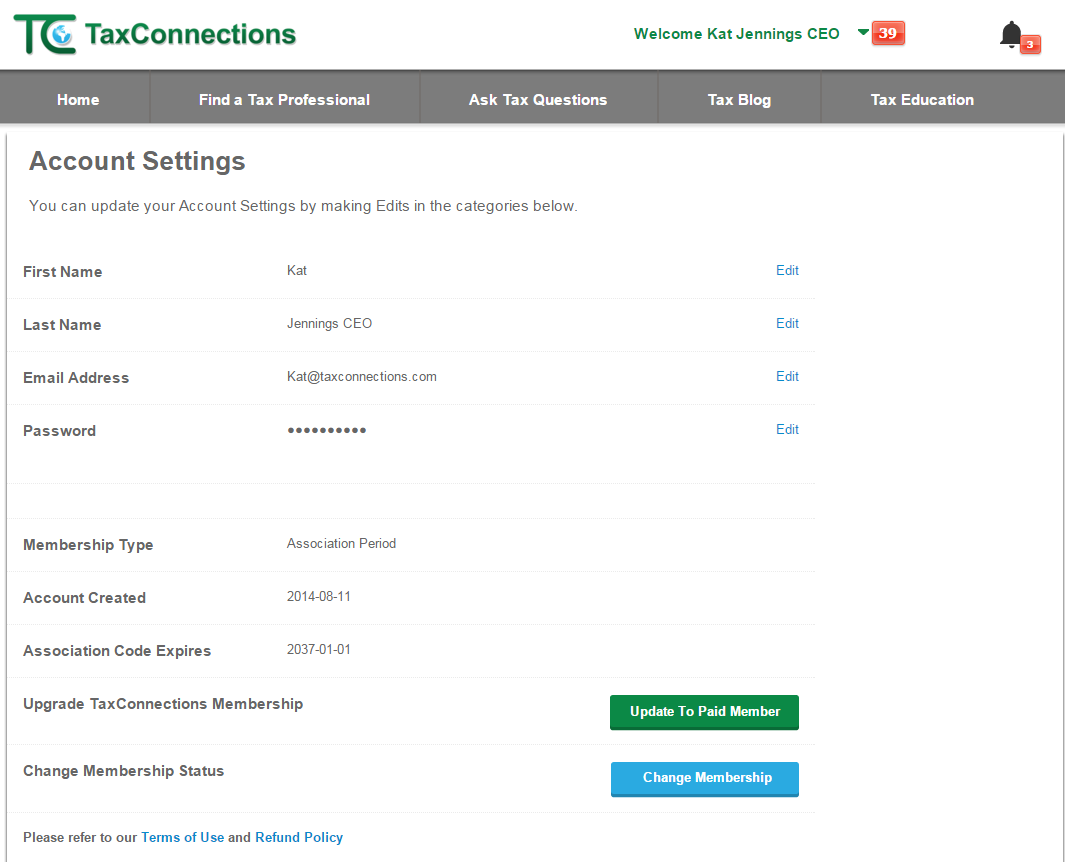
1) Go to www.taxconnections.com and Login.
2) Click on “Welcome Your Name” dropdown navigation bar.
3) Click on Account Settings in the dropdown navigation bar and the screen below will appear.
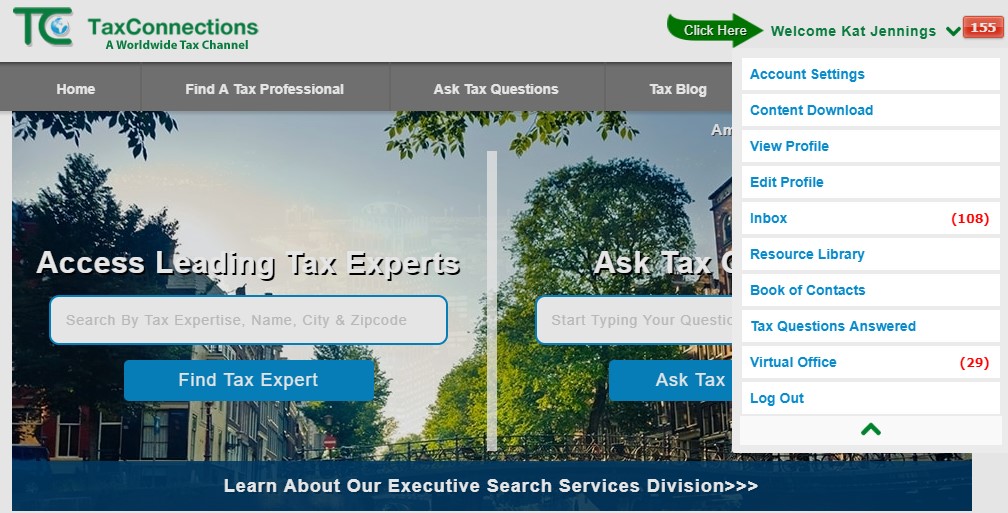
4) Click on Edit to the right of your Email Address to update.
- 3. Change Your Password For Your Account
-
1) Go to www.taxconnections.com and Login.
2) Click on “Welcome Your Name” dropdown navigation bar.
3) Click on Account Settings in the dropdown navigation bar and the screen below will appear.
4) Click on Edit to the right of your Password to update.
- 4. How To Access Your Virtual Tax Office
-
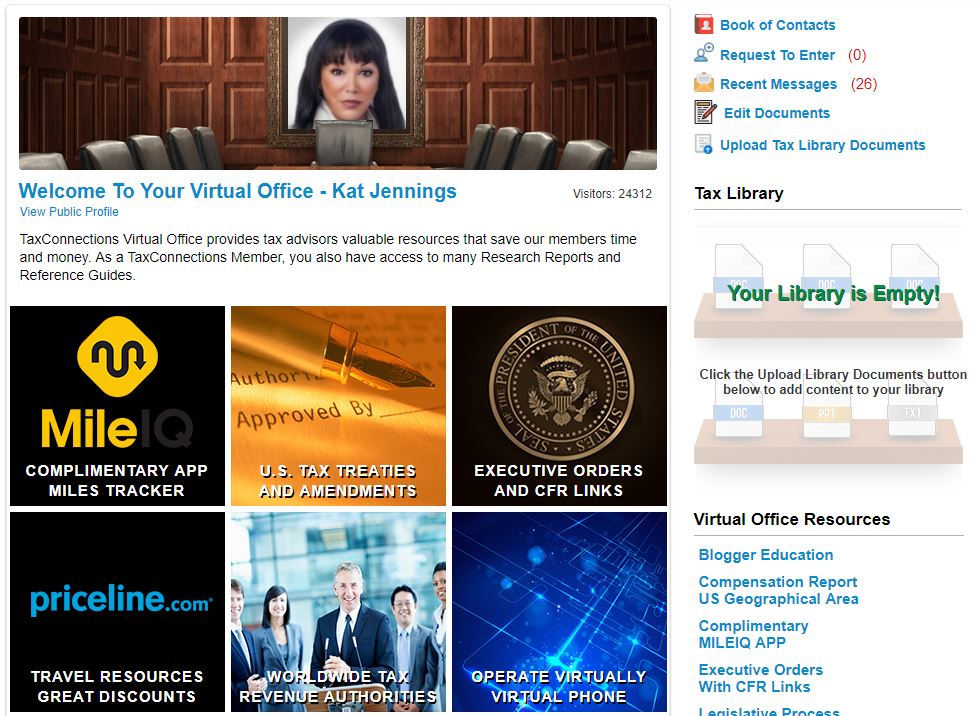
1) Go to www.taxconnections.com and Login.
2) Click on “Welcome Your Name” dropdown navigation bar.
3) Click on Virtual Tax Office.
4) You are now in the Virtual Tax Office which serves as a virtual tax office and message center.
- 5. How to Login To TaxConnections
-
1) Go to www.taxconnections.com and Login.
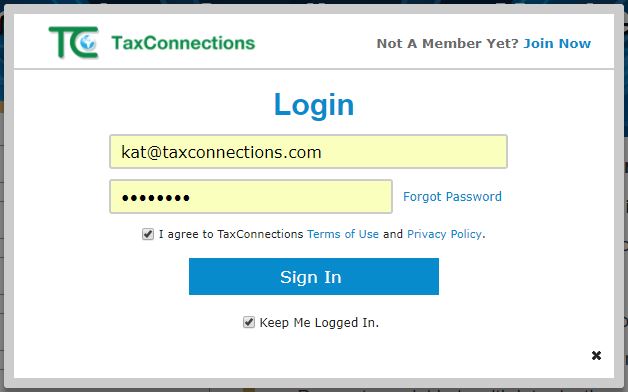
If this is your first visit to TaxConnections, you have two available options:
a) Sign Up as a Taxpayer
b) Sign Up as a Tax Professional Member

- 6. How To Use Your Welcome Navigation Bar
-
1) Go to www.taxconnections.com and Login.
2) Click “Welcome Your Name” dropdown navigation bar as shown in the example below. Our Tax Professional
Members have many more tools available to them than a free taxpayer membership. We help tax professionals
build visibility and authority for their tax expertise. TaxConnections has created features that enable our visitors
and tax professional members to interact easily with each other.
- 7. How To Edit Your Tax Professional Profile
-
1) Go to www.taxconnections.com and Login.
2) Click on “Welcome Your Name” dropdown navigation bar.
3) Click on Edit Profile to view the category below on the left of your screen.
4) Select the category you want to Edit on your professional profile page.

5) An Example of Editing A Section Of Your Professional Profile:
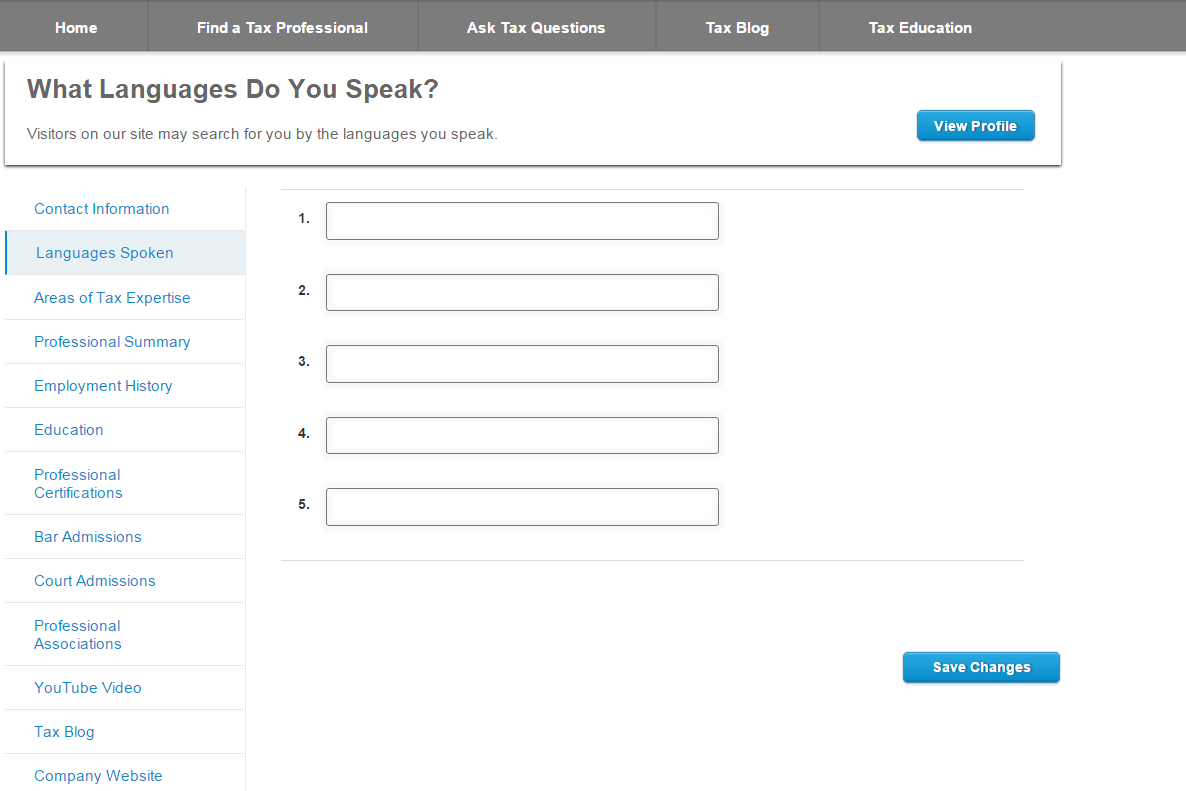
6) It is very important to click the Save Changesbutton after each page edited!

- 8. How To Upload Your Photo To Your Professional Profile
-
Special Note: TaxConnections only allows photos of tax professionals.
The reason is photos builds trust and created more connections!1) Go to www.taxconnections.com and Login.
2) Click on “Welcome Your Name” dropdown navigation bar.
3) Click Edit Profile and this screen will appear. Now click on Upload A Picture!
4) Upload A Picture by clicking Browse and our program will search your computer for your photo. The format needs to be .jpg or .png and once you double click on the photo and select a photo from your desktop it will automatically upload to your professional profile page.

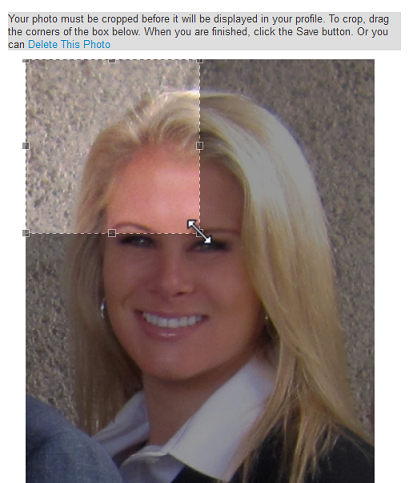
5) Sometimes a photo will need to be cropped for better viewing. Simply click from the corner and stretch the area you would like to crop for your photo. See below:
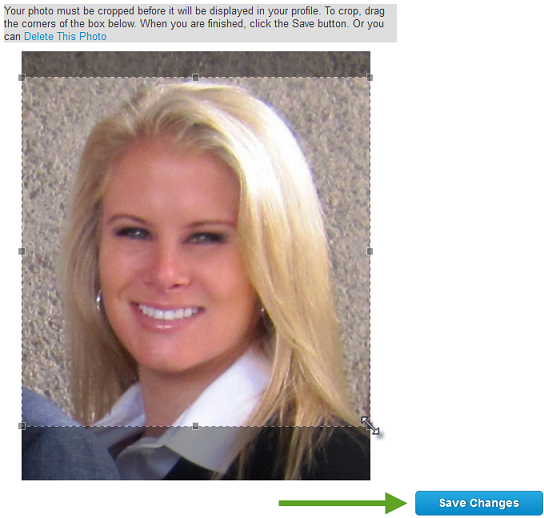
6) Click Save Changes to set your photo to your Profile. This step will place you on the Home Page in the Featured Tax Professionals section when your profile has been completed within the ten days of Sign up!
7) Now go back to your Welcome Your Name dropdown navigation bar and click on View Profile to check your photo upload.
- 9. How To Upload Video To Your Tax Professional Profile
-
1) Go to www.taxconnections.com and Login.
2) Click on “Welcome Your Name” dropdown navigation bar.
3) Click on Edit Profile in the dropdown navigation bar.
The following screen will appear:
4) Click on YouTube Video! You need to upload your Video to YouTube first as we simply grab the link from your YouTube video and Upload it to your TaxConnections profile.
Now follow these instructions below:
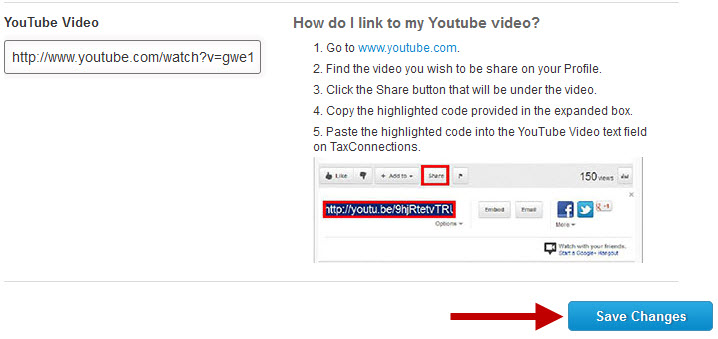
5) Once you have pasted the YouTube code in the YouTube Video text field, select Save Changes.
6) Go back to your Welcome Your Name dropdown navigation bar and click on View Profile to check that your video uploaded properly.
- 10. Building A Professional Summary Template
-
The future of your career success today starts with how you present yourself with your online Professional Summary. This is generally a person’s first glimpse into who you are in terms of experience, expertise, education and interests. A smartly constructed online professional profile elevates your image in the world, and without an online professional summary you are invisible to the world. The secret to success starts with a written Professional Summary that attracts people and opportunities to you.
You should write a Professional Summary like an elevator pitch. An elevator pitch is a strategic way to describe what you will do for a prospective client or employer; it is a tightly focused mini sales pitch that motivates people to take an interest in hiring you. The effort you put into building your pitch in your Professional Summary is important. A great pitch keeps prospective clients and new business relationships moving closer to you! A great elevator pitch centers around these questions:
1. What do they want or need?
2. What pain do they have?
3. What solution do you offer?
4. Examples of solutions provided for others!
5. Why take action with you?
6. Call to action. (Offer free consultation, written publication, or simply to contact you if they have a question.)The message must be strong and unique enough to get people to pay attention to your skills and expertise. A memorable pitch spreads the good word about you online. The primary goal is to motivate prospective clients or employers to take action and contact you. The result is more opportunities approaching you throughout your career. Give yourself a professional advantage by building an online Professional Summary that creates more opportunity for you. Here is an Example Template to use in building a your compelling Professional Summary:
My name is XXXXXXX and I am a ( Title) with (years of experience) in (primary areas of expertise). Do you need help with (XXXXX)? OR Do you want to know what a (Title) does for organizations today? Here is what a (Title) should do for a company. Now tell them what your tax expertise will do for them, what benefits do you bring to the table. Give readers examples of work you have done that has produced great results for your client or company.
My purpose is to(save you time and money on your tax return, protect you on tax audits, represent you professionally, minimize and reduce corporate tax risk, etc.) Contact me and I will send you(give them a reason to contact you for free, this is called a lead magnet, give them a copy of an article you have written, offer a free 15 minute consultation, offer to be available to answer any questions,
- 11. How To Answer Tax Questions
-
SPECIAL NOTE: Olny TaxConnections tax professional members are able to answer tax questions on this site. We promote our members on the Home Page each time they answer tax questions.
1) Go to www.taxconnections.com and Login.
2) Click Ask Tax Questions in the top of the TaxConnections Header Bar as displayed below.
You will be redirected to the Ask Tax Questions page.
3) Type any letter into the search bar where it says Enter Your Tax Question Here...
4) Click the All Questions dropdown box as displayed below. You have the option of selecting Answered Questions
or Unanswered Questions. Click on the Country dropdown box to select the country associated with the tax question.
5) Click on any tax question you want to answer; and the Answer This Question Box appears. Type in your response and select Submit Answer.
Whenever you Answer A Question your Professional Profile appears on the Home Page.
- 12. Search Unanswered Tax Questions
-
1) Go to www.taxconnections.com and Login.
2) Across every page of the TaxConnections site is the Header Bar and it looks like this bar below...
2) Click Ask Tax Questions in the top of the TaxConnections Header Bar as displayed below.
You will be redirected to the Ask Tax Questions page.
4) Click the All Questions dropdown box as displayed below. You have the option of selecting Answered Questions
or Unanswered Questions. Click on the Country dropdown box to select the country associated with the tax question.
5) Make certain you also Select Country to refine the location.
6) You can also select Tax Questions By Topic.
- 13. Build A Book of Prospective Clients And Referrals
-
1) Go to www.taxconnections.com and Login.
2) Click on Welcome Your Name dropdown navigation bar
3) Click on Book of Contacts on the dropdown navigation bar and you can view all the people you have allowed to contact you and all your messages are free.
4) It is easy to continue to build your Book of Contacts. Just go through TaxConnections Worldwide Directory of Tax Professionals; search for a tax professional and click the Send Message envelope located under their photo.
- 14. How To Download An eBook Purchased
-
1) Go to www.taxconnections.com and Login.
2) Click on "Welcome Your Name" green dropdown navigation bar at top of screen.
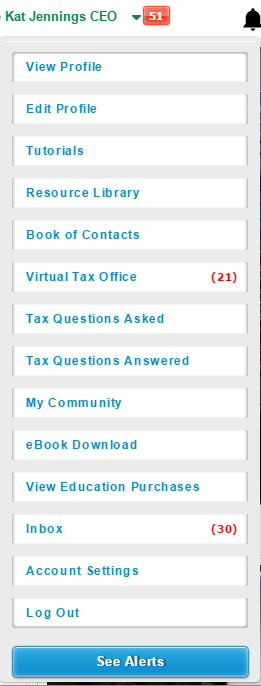
3) Click on eBook Download. to access your purchase from our tax professional member.
4) If you require any assistance, please contact us at 858.999.0053.
- 15. What Is A Tax Library?
-
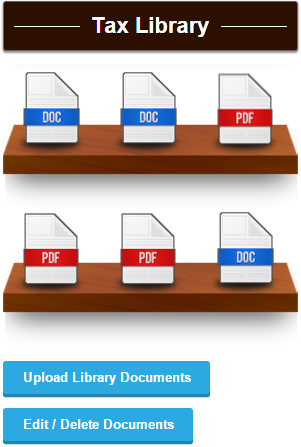
Our Tax Professional members are provided a Tax Library to upload up to 9 documents on their professional profile page.
Building a Tax Library keeps people interested and curious about your tax expertise.1) Go to www.taxconnections.com and Login.
2) Click on “Welcome Your Name” dropdown navigation bar located at top of screen.
3) Click on Virtual Tax Office and your private virtual office will appear.
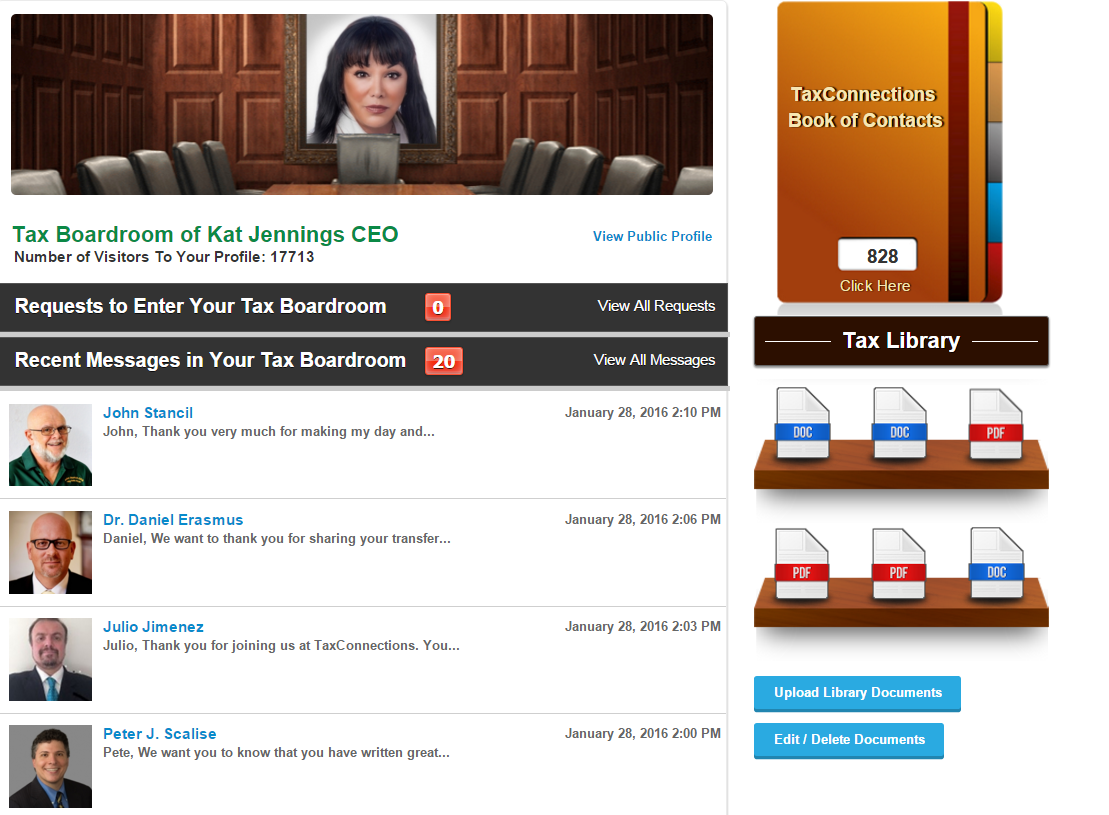
3) On the right side of your screen will be your Tax Library. Click on the blue buttons located just below your Tax Library to Upload Library Documents or Edit/Delete Documents.
- 16. How To Upload Documents To Your Tax Library
-
Your Personal Tax Library Encourages Visitors To Browse And Learn More About Your Tax Expertise
1) Go to www.taxconnections.com and Login.
2) Click on Virtual Tax Office and your private virtual office will appear. On the right side of your screen will be
your Upload Library Documents button. Click on this button located just below your Tax Library.
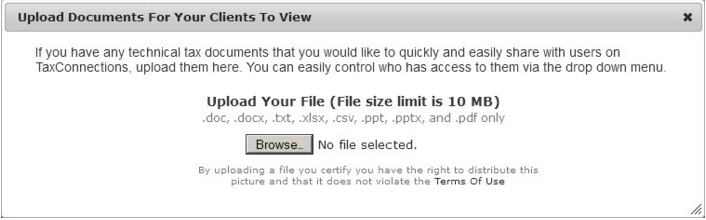
3) A popup screen will appear that enables you to upload your documents. You must click Browse to locate the document
on your desktop and then double click the document to place it in your Tax Library.
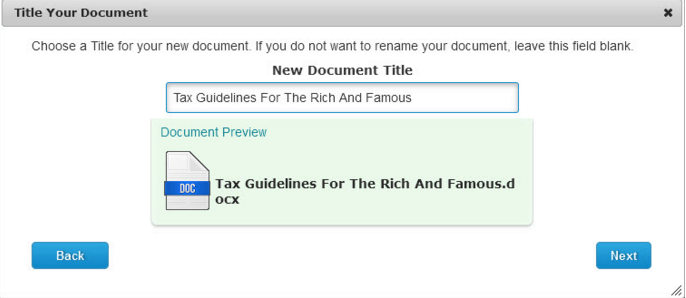
4) You will then be prompted to Name New Document Title.
5) You will now be given a visibility option. You can select one of the two choices:
a) Virtual Tax Office- Private View means only those invited into your private office can view your documents and publications.
b) Virtual Tax Office and Tax Professional Profile View means that anyone viewing your profile can also browse through your Tax Library.
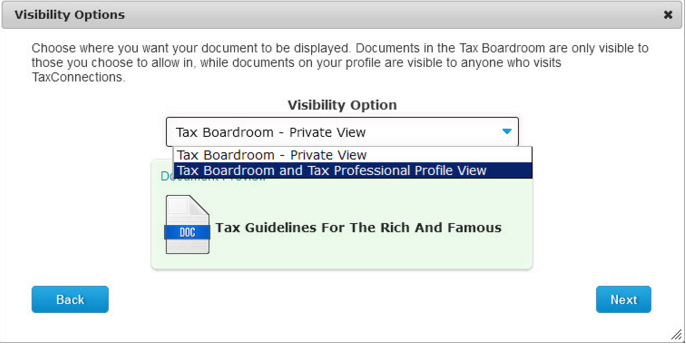
6) Click on Next until you see the Finish button! It is important to click Finish!
You can place up to 9 documents or publications into your Tax Library.
- 17. How To Delete Documents In Your Tax Library
-
Your Personal Tax Library Encourages Visitors To Browse And Learn More About Your Tax Expertise
1) Go to www.taxconnections.com and Login.
2) Click on Virtual Tax Office and your private virtual office will appear.
On the right side of your screen will be your
Edit/Delete Documents button.
3) Select the Edit/Delete button and a list of all your Documents listed in your Tax Library will appear.
4) Click the X located at the end of any row of a document you want deleted.
5) Click the Update button at the bottom far right!
You are then finished.
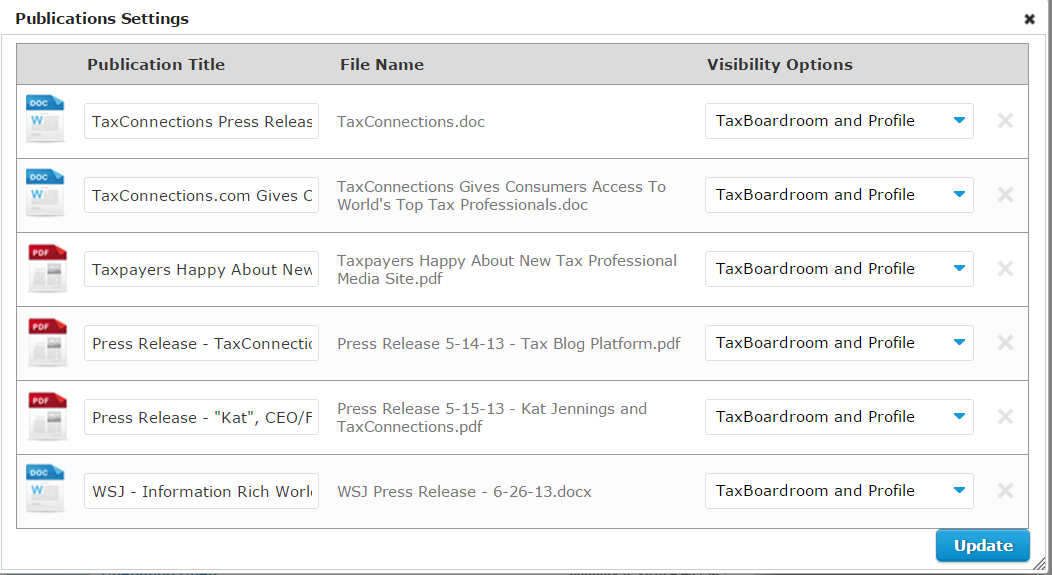
6) You can place up to 9 documents/ publications into your Tax Library to be displayed on your Tax Professional profile page.
- 18. How To Upload To Tax Library (Private View Only)
-
Tax Professional members may elect to upload documents to their Tax Library so only those individuals they have accepted into their Virtual Tax Office can see it.
1) Go to www.taxconnections.com and Login.
2) Click on Virtual Tax Office and your private virtual office will appear. On the right side of your screen will be your
Edit/Delete Documents button.
3) Click on Upload Library Documents and the following screen will appear. Click on Virtual Tax Office- Private View
to hide the document from anyone you have not accepted into your Virtual Tax Office.
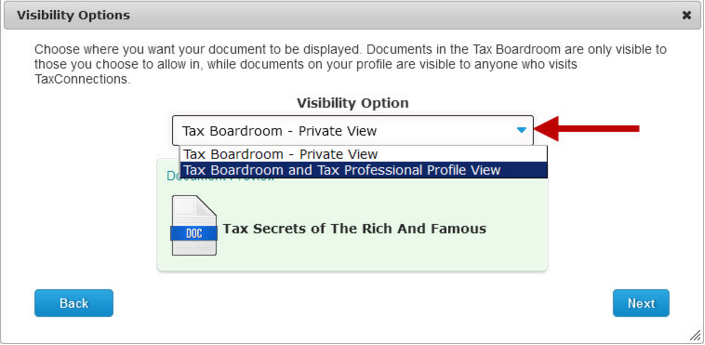
4) Click on Next until you see the Finish button! It is important to click Finish!
5) You can place up to 9 documents or publications into your Tax Library.
- 19. View Your TaxConnections Notifications
-
TaxConnections sends members a notification when they have a message waiting from one of TaxConnections site visitors. Here is how to find your notifications.
1) Go to www.taxconnections.com and Login.
1) There are three types of notifications indicated by red numbers:
a) Virtual Tax Office notifications are from your virtual tax office!
b) Inbox messaging center handles a wider range of communications.
c) Alerts remind you who just connected with you.
- 20. How To Add Tax Questions Answered Widget To Your Website
-
Tax Questions Answered Widget
TaxConnections Members benefit everytime they Answer A Tax Question. This valuable Widget enables members to transfer tax questions they answer on TaxConnections to their very own site.
1. When you Answer A Tax Question on TaxConnections the following happens:
a) You appear on the very active TaxConnections Home Page.
b) This appears on your Tax Professional Profile page.
c) You receive a higher rating on our site.
d) You generate more content for your own site using widget.
Instructions To Embed Code (Ask your website developer to do this for you.)
Simply copy and paste the HTML Code on the page you would like your TaxConnections Tax Questions Answered Widget to appear.
- 1. Register To Blog On TaxConnections Worldwide Tax Blogs
-
-
IMPORTANT NOTE: Our Tax Blog is set up on WordPress and has a separate Login Passcode which will be issued
- Go to www.taxconnections.com.
- Click on Tax Blog in the grey header bar you will be directed to TaxConnections Worldwide Tax Blogs landing page
located at this link https://www.taxconnections.com/taxblog. - The next step is scrolling down on this page until you see Blogger Login on the lower right hand side of your computer screen.
CLICK ON THIS BUTTON!
- If this is your very first time to Register to blog on TaxConnections Worldwide Tax Blogs, we need you to click on the Register
link as show below: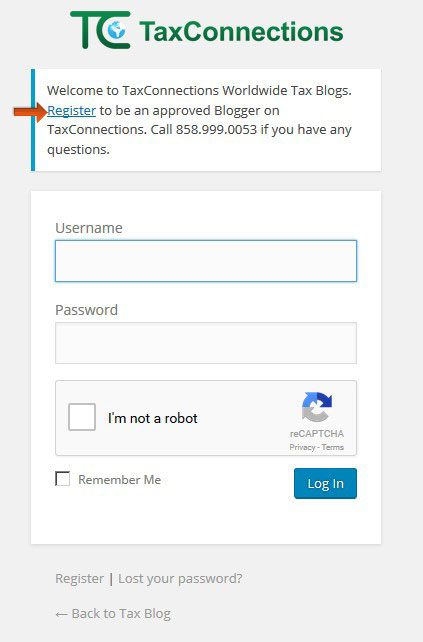
- The following Registration Form will appear inviting you to Register. Once you Register to Blog, your request is sent to our
Adminstrator for Approval.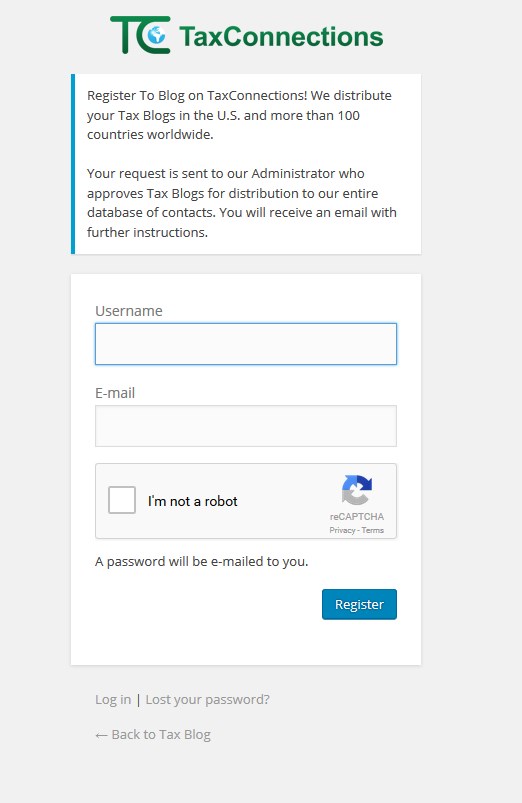
- Upon Approval, you will be sent a Password to Login along with Instructions on how to set up your tax blogger profile; and
how to submit your tax blogs for distribution to our global network of loyal readers in over 150 countries. - If you do not receive a message from us within 24 hours for approval to submit your tax blogs, we recommend you check
your junk mail first. See example of Approval Message that was sent to Junk Mail. We ask you to call us at 858.999.0053
if you have not receive approval within 24 hours. Our entire team is here to make you happy!
to you once you are approved. You must be a Tax Professional member in order to gain permission to blog on
TaxConnections and benefit from our worldwide distribution network. Click Here To Join TaxConnections First.
- 2. Set Up Your Blogger Profile (After Approved)
-
-
IMPORTANT NOTE: If this is your very first time to Register to Blog on TaxConnections, you must go to this link to
- Go to www.taxconnections.com.
- Click on Tax Blog (grey header bar example below) and you will be directed to TaxConnections Worldwide Tax Blogs
landing page that is located at the following link: https://www.taxconnections.com/taxblog.
- Once you are on the Worldwide Tax Blog page scroll down until you see the Button that states Blogger Login.
Scroll down the page until you see it located along the lower right hand side of your computer screen. Click on the Blogger
Login button below!
- Enter your Username and Password into the Blogger Login. If you cannot remember your Username or Password please
send a message to blog@taxconnections.com or call 858.999.0053 and we will be happy to help you.
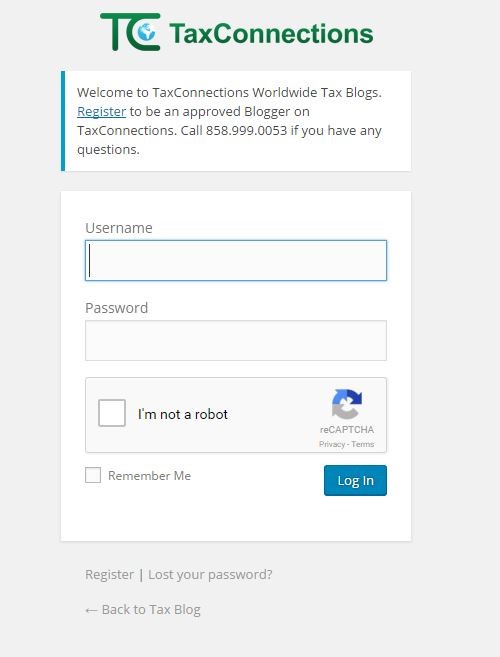
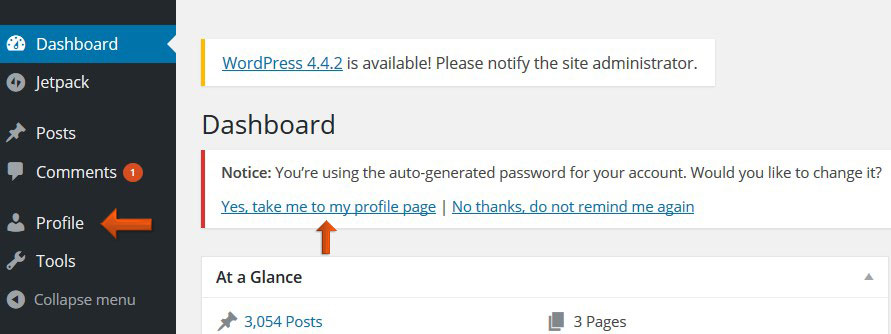
SPECIAL NOTE: If you have any difficulty signing in we recommend you try signing in with another web browser as some do not work with the WordPress Captcha Security settings. - Once you Login, you will be brought to TaxConnections Worldwide Tax Blog Dashboard.Click on "Profile" on the Menu
Bar at the left of your screen to fill in your Blog Biography.
- We suggest that you fill out your Blog Biography and upload a photo!
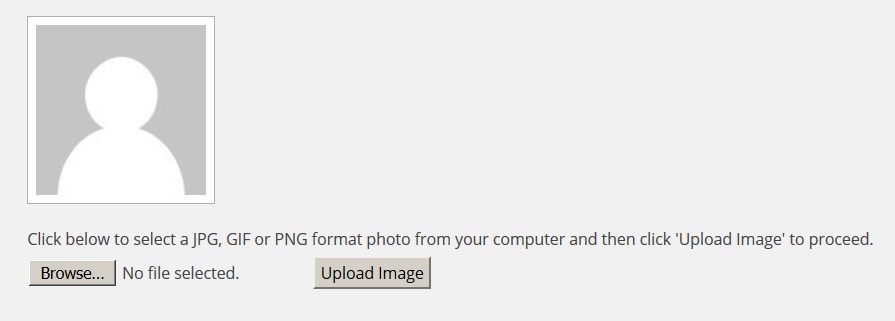
- Upload your Photo by clicking the box next to "Browse" to search your computer for your picture. Double Click the photo
you have on your computer and select "Upload Image
- You are now ready to return to "Posts" to submit your Blog for review and Publish to TaxConnections Worldwide Tax Blogs
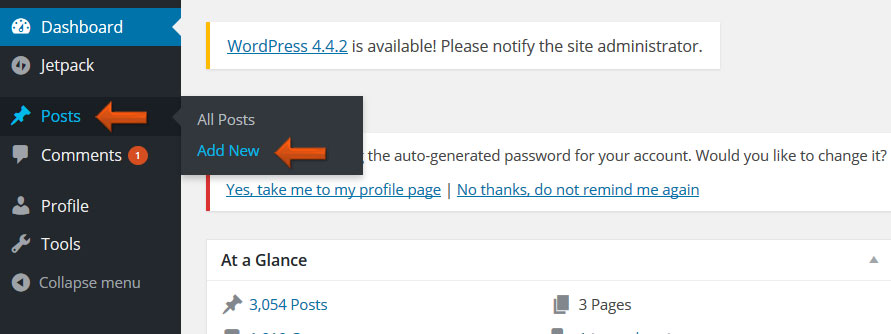
- The first step in posting in TaxConnections Worldwide Tax Blogs, is naming your Post.

- Once you have chosen the perfect title for your post, you can now enter in the text of your blog.
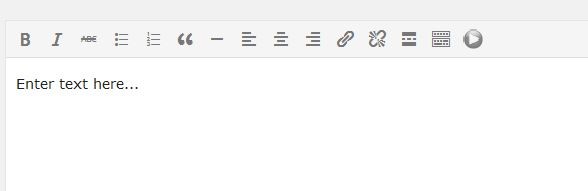
- The final step in writing a blog is to submit for review! Congratulations! You have now posted your first blog! You must
submit it to TaxConnections for your review! Click Submit for Review blue button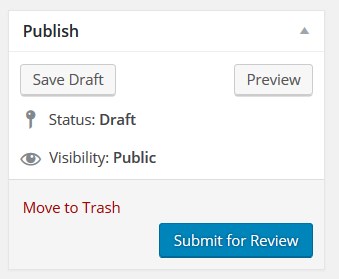
Register first! After approved you can then set up your Profile as a Tax Blogger on TaxConnections.
- 3. How To Post Your Tax Blogs
-
- Go to www.taxconnections.com.
- Click on Tax Blog (grey header bar example below) and you will be directed to TaxConnections Worldwide Tax Blogs
landing page that is located at the following link: https://www.taxconnections.com/taxblog.
- Once you are on the Worldwide Tax Blog page scroll down until you see the Button that states Blogger Login. Scroll
down the page until you see it located along the lower right hand side of your computer screen. Click on the Blogger
Login button below!
CLICK ON THIS BUTTON! - Enter your Username and Password into the Blogger Login. If you cannot remember your Username or Password please
send a message to blog@taxconnections.com or call 858.999.0053 and we will be happy to help you.
SPECIAL NOTE: If you have any difficulty signing in we recommend you try signing in with another web browser as some do not work with the WordPress Captcha Security settings. - You are now ready to Post and submit your Blog for review and publication on TaxConnections Worldwide Tax Blogs.
- The first step in posting in TaxConnections Worldwide Tax Blogs, is naming your Post.
- The next step is placing your tax blog into the area provided below.
- The final step in writing a blog is to submit for review! Congratulations! You have now posted your first blog! You must
submit it to TaxConnections for your review! Click Submit for Review blue button
Upon approval, your Tax Blog will be distributed worldwide!
- 4. How To Search TaxConnections Tax Blogs For Specific Tax Topics
-
- Go to www.taxconnections.com/taxblog
- Scroll down and you will see the following:
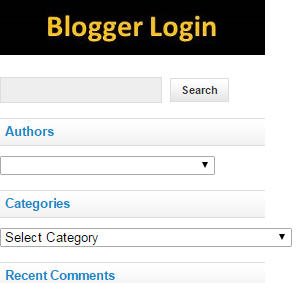
- Type in the topic of tax blogs you are interested in
viewing and click on the ‘Search’ button. This will
bring up all Tax Blogs posted on TaxConnections
related to the topic you input into search bar.